Mr. Mp3s

Trending technology news update

  • Home
  • Business
    • Internet
    • Market
    • Stock
  • Privacy Policy
    • Child Category 1
      • Sub Child Category 1
      • Sub Child Category 2
      • Sub Child Category 3
    • Child Category 2
    • Child Category 3
    • Child Category 4
  • Advertise With Us
  • Contact
    • Privacy Policy
    • Doctors
  • Home
  • Categories
    • Tech360
    • Auto360
    • HowTo360
  • Downloads
    • Music360
    • Games
    • Software
      • Office
  • More Categories
    • Pedia360
      • BLOGGER
      • Android
      • Play Store
    • Child Category 2
    • Child Category 3
    • Child Category 4
  • Entre360
  • iPhone
    • iPhone X
    • iPhone 8
  • Health

Wednesday, 23 September 2015

How To Transfer Data from Old iPhone to iPhone 6s

 loveswaggs     22:36:00     HowTo360, iPhone     No comments   

Helpful post i saw on one of my post comment, from leawo.org i thougth i share it here. If you skipped iPhone 6 last year, you shouldn’t miss the iPhone 6s coming on September 25. The latest iPhone model added impressive 3D Touch feature, and several internal updates like CPU, battery and so on. iPhone 6s and iPhone 6s Plus provide 4.7-inch and 5.5-inch display, and they have added new color option called rose gold.

If you have decided to update to iPhone 6s, you will want to transfer data from old iPhone to iPhone 6s. The problem is, how to do that? As a matter of fact, if iPhone users have updated their iPhone backup with iTunes or iCloud, they are able to move most of the important data from old iPhone to iPhone 6s by restoring iPhone 6s with the backups.

When the restoring process is finished, the data will be imported into your iPhone 6s, but the media files, such as music, videos and so on, won’t be transferred to iPhone 6s. If you have purchased albums in iTunes Store, you will have the songs in your purchased history, and you are able to download the songs on your iPhone 6s directly by entering iTunes Store with your Apple ID. You’ll need good Wi-Fi connection to finish the task.


Also read: Steps on How To Get Cortana on Android Now


These methods are helpful for transferring data from old iPhone to iPhone 6s, but they won’t help you transfer to the non-purchased files, like CD copies, ripped videos and so on. At this moment, you will need the iPhone transfer software to transfer non-purchased files from old iPhone to iPhone 6s. Leawo iTransfer will provide much help on this issue. This software is used for transferring files among iOS devices, iTunes and computers, and it allows users to transfer non-purchased items without the sync of iTunes. The following guidance will set transferring music as an example, and show you how to transfer data from old iPhone to iPhone 6s. You can free download the software to have a try

Also read; How To Increase Battery Life in Windows 10
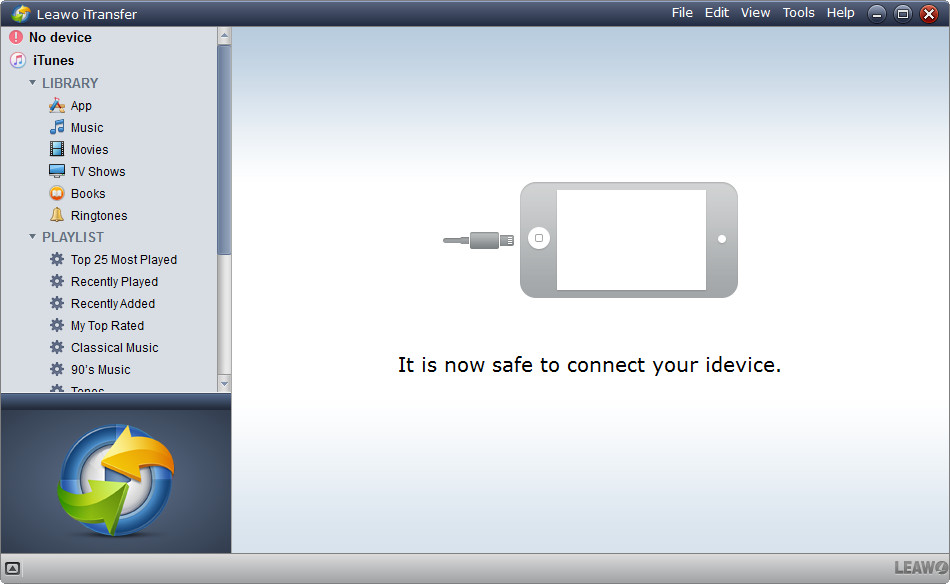
Step 1. Run Leawo iTransfer and connect both iPhones to computer with the USB cable.
Also read: Tweaks & secrets you don't know about Windows 10
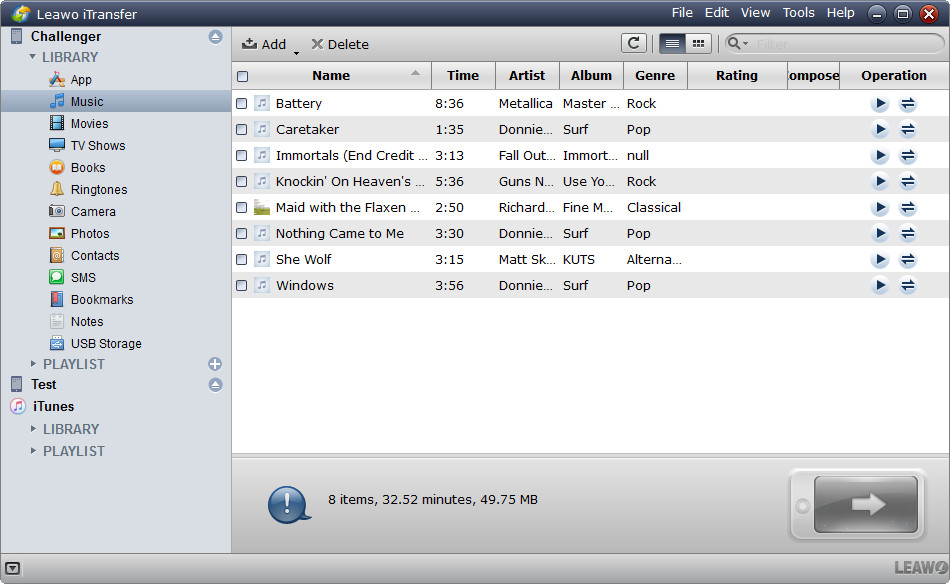
Step 2. Click the name of your old iPhone, and choose Music in the left sidebar. The music files will show up in the right part. 
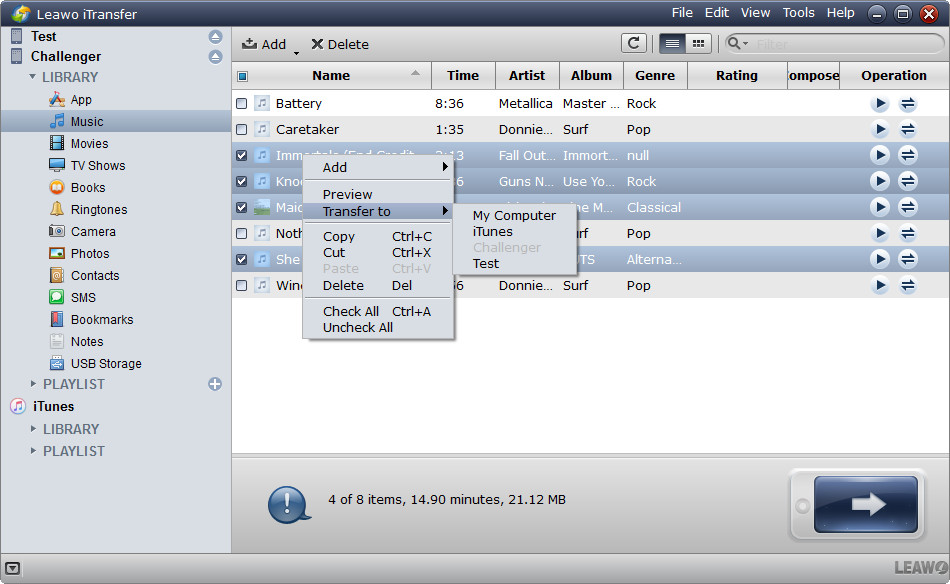
Step 3. Select the music files you need, and click the transfer button at the right bottom. Or right-click the selected files and choose Transfer to > iPhone 6s. 
Also read:  How To Fix ‘Slide to Upgrade’ Bug After Updating to iOS 9

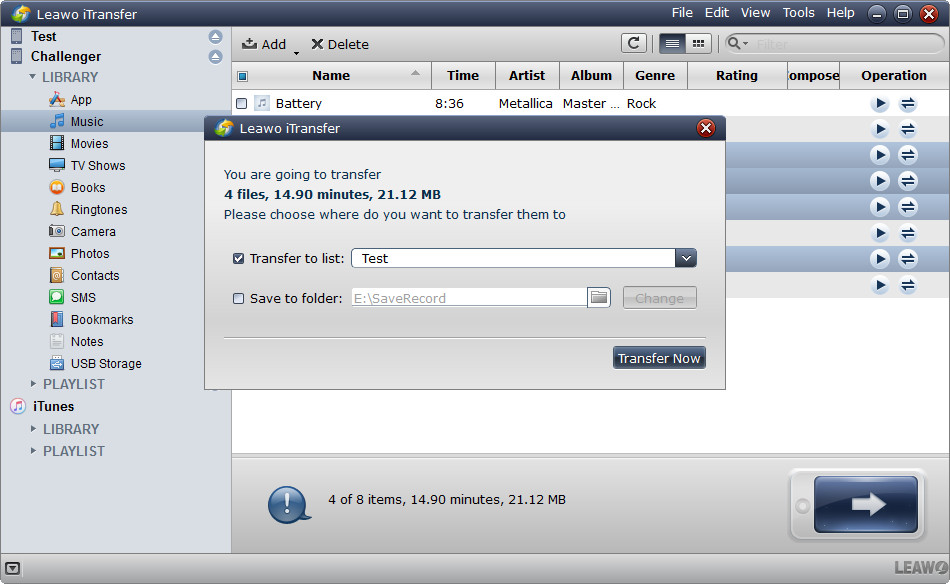
Step 4. Check Transfer to List and choose iPhone 6s as a target. Then click Transfer Now to start transferring data from old iPhone to iPhone 6s. 
When the transfer is finished, you will get the music files in your iPhone 6s. Please note that all the music files in your iPhone Music Library will be recognized by Leawo iTransfer, so you don’t have to separate the non-purchased music files from the purchased ones.

Leawo iTransfer is helpful for various kinds of data transfers for iPhone, iPad and iPod, and users can take advantage of the programs to backup iPhone, iPad and iPod data, for example, users can backup pictures from iPad Pro to computer with Leawo iTransfer. If you are interested in this software, just check it out.
source leawo.org 
  • Share This:  
  •  Facebook
  •  Twitter
  •  Google+
  •  Stumble
  •  Digg
Newer Post Older Post Home

0 comments:

Post a Comment

What's On Your Mind?

Adsense

Popular Posts

  • 4 Reasons to Drink Palm Wine From Igboland
    Palm wine is a local beverage which is dear to many Nigerians. Some people even believe that it is better than factory brewed drinks ...
  • How To Download Andriod Apps Directly On Your Blackberry Z10,Q10,Q5,Z30 Without PC
    Blackberry has done it all, In my last tutorial, I shared how you can download and install android apps to your BB 10 using computer b...
  • MP3|| Bracket ft. Olamide – EGO (Remix)
    Correct highlife music from Bracket , blended with some Olamide flow! That’s what we get on this very lovely tune – EGO (Remix ) by th...
  • 6 Best Flying Tips for Pregnant Business Women
    Being pregnant and flying at the same time can be a humongous challenge especially for business women. Combine your pregnancy and the ...

Social Widget

15.6K
46K
5.6K
2K
9.5K
2.8K
3.3K
3.9K
3.9K
3.9K
3.9K
3.9K

Pages

  • Home
  • Categories

Labels

AC adapter Amazon Appstore Amazoncom Android Android (operating system) Animoji Apple Inc. Apple Store Augmented reality Autos360 BLACKBERRY BLOGGER Bluetooth Brad Feld Celeb Cellular network Dual SIM Emoji Emojipedia Entre360 Facebook Facebook Messenger Facial expression Facial recognition system FEATURED Fingerprint recognition FLY-Phones Ford Fun360 Games Google Google Hangouts Headphones Health HowTo360 IMessage Inductive charging Infinix InnJoo IOS IPad iPhone iPhone 10 iPhone 8 iPhone 8 Plus iPhone X iTel ITunes Lightning (connector) LoveSwaggs LTE (telecommunication) Microsoft Music360 net Networth News Pedia360 Phone connector (audio) Phone Photos Samsung Samsung Galaxy Samsung Galaxy Note 8.0 Scam360 Sim Cards Sponsored Subscriber identity module Tech360 Tecno USB Video360 VR WhatsApp Wi-Fi

Navigation

Simple social

Copyright © Mr. Mp3s | Powered by Blogger
Design by Hardeep Asrani | Blogger Theme by NewBloggerThemes.com | Distributed By blogger Templates